Find jobs and send quotes
Customers who aren't sure what a job costs post it and ask for quotes. You see the jobs in your categories and service area, and send your price.
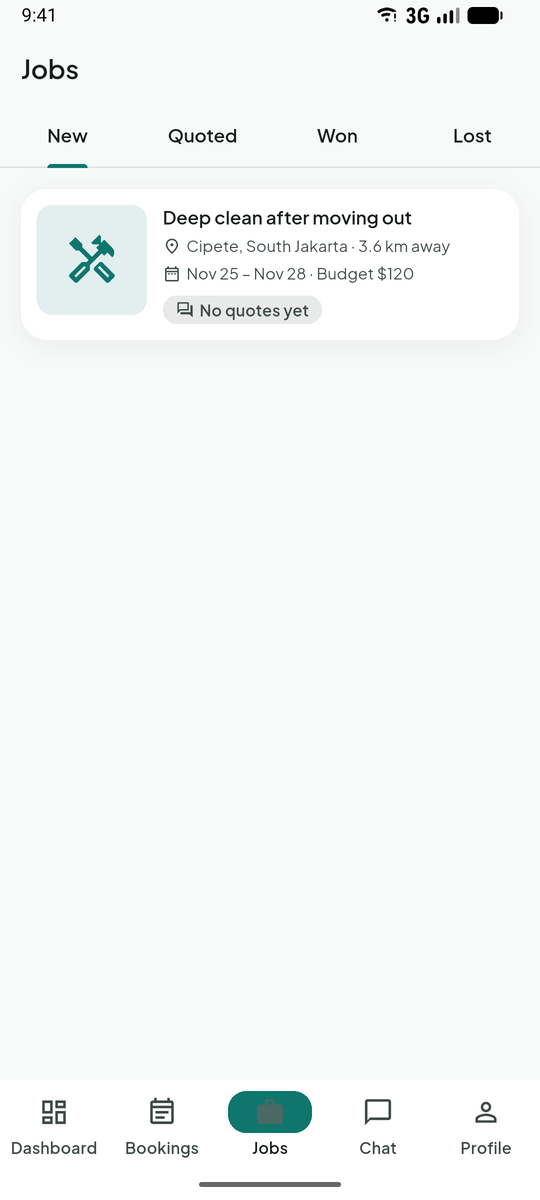
In provider mode, tap Jobs.
| Tab | What's in it |
|---|---|
| New | Open jobs near you that you haven't quoted yet. Pull down to check for new ones. |
| Quoted | Jobs where your quote is waiting for the customer. |
| Won | Jobs where the customer accepted your quote. |
| Lost | Jobs where another pro was chosen, or the job closed. |
Look at a job
Open a job to read the description and photos, the customer's preferred dates, their budget (or No budget given), how far away it is, how many quotes it already has, and the customer's rating from other pros.
You only see the approximate area. The exact address appears if your quote is accepted.
Send a quote
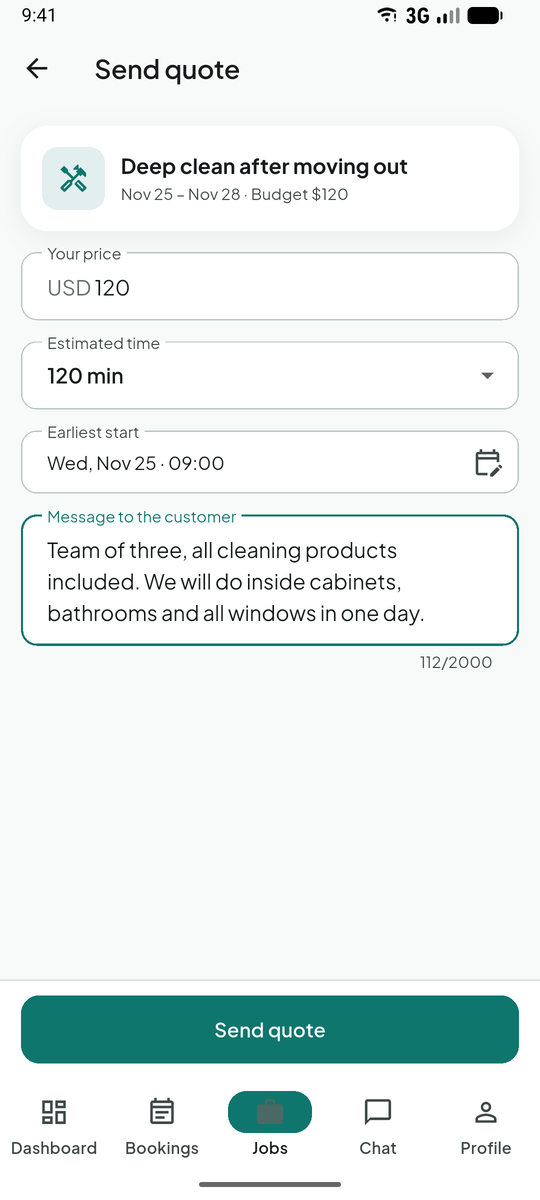
Tap Send quote and fill in:
- Your price.
- Estimated time the work will take.
- Earliest start: a time on one of the customer's preferred days.
- Message to the customer: what's included, materials, anything they need to know.
If your marketplace has AI turned on, AI: suggest a price and message fills in a suggested price range and a draft message from the job's details. Check and adjust it before you send.
Tap Send quote. The customer is told, and the job moves to Quoted. You can also chat with the customer about the job.
Edit or withdraw a quote
While the job is still open:
- Edit quote to change the price, time or message. The customer sees the update.
- Withdraw to take the quote back. You can send a new one while the job is open.
When the customer decides
- Accepted: the job moves to Won and becomes a booking in Bookings → Upcoming. Tap Open booking to go to it. From here it works like any other booking; see Handle bookings.
- Not chosen: the job moves to Lost.