Admin panel overview
The admin panel runs the marketplace: approving providers, managing the catalog, following bookings, handling refunds and disputes, moderating reviews and chats, and every setting the apps download.
Open it at https://your-api-domain/admin.
Sign in
Sign in with your admin email and password. Forgot it? Click Forgot password? on the sign-in page; you get a 6-digit code by email to choose a new one.
Only admin accounts can sign in. A customer or provider account gets the same "credentials do not match" message as a wrong password.
Dashboard
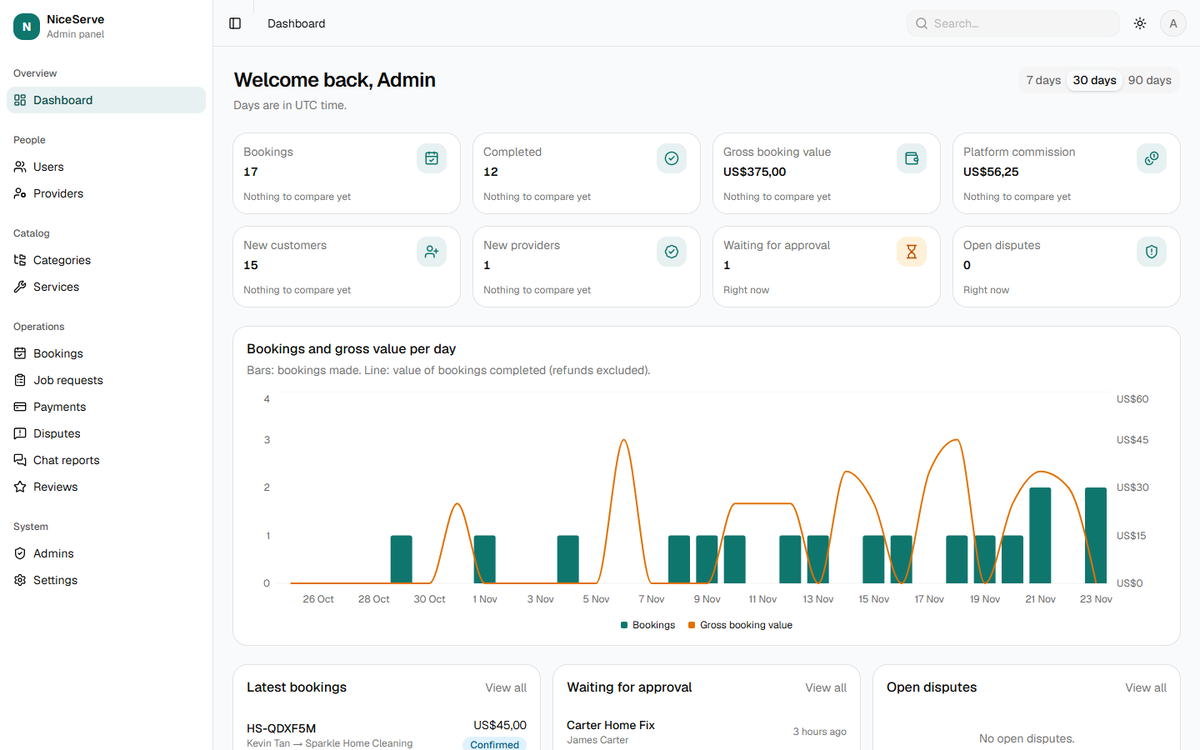
The dashboard shows the last 7, 30 or 90 days:
| Card | Meaning |
|---|---|
| Bookings | Bookings made in the period |
| Completed | Jobs confirmed as done |
| Gross booking value | Value of completed bookings, refunds excluded |
| Platform commission | Your share of that value |
| New customers / New providers | Sign-ups in the period |
| Waiting for approval | Provider applications to review, right now |
| Open disputes | Problems customers reported that aren't resolved yet |
Below the cards, a chart shows bookings and value per day, and short lists show the latest bookings, providers waiting for approval and open disputes. Days are counted in the business timezone set in Settings → Business.
Finding your way around
The sidebar groups the screens:
| Group | Screens | Guide |
|---|---|---|
| Overview | Dashboard | This page |
| People | Users, Providers | Users and moderation, Providers |
| Catalog | Categories, Services | Catalog |
| Operations | Bookings, Job requests, Payments, Disputes, Chat reports, Reviews | Bookings, payments and disputes, Users and moderation |
| System | Admins, Settings | This page, Settings |
Every list can be searched, filtered, sorted and paged. The filters are kept in the page address, so you can bookmark a filtered list or send it to a colleague. Use Columns to show or hide columns. The sun/moon button switches the panel between light and dark.
Admins and roles
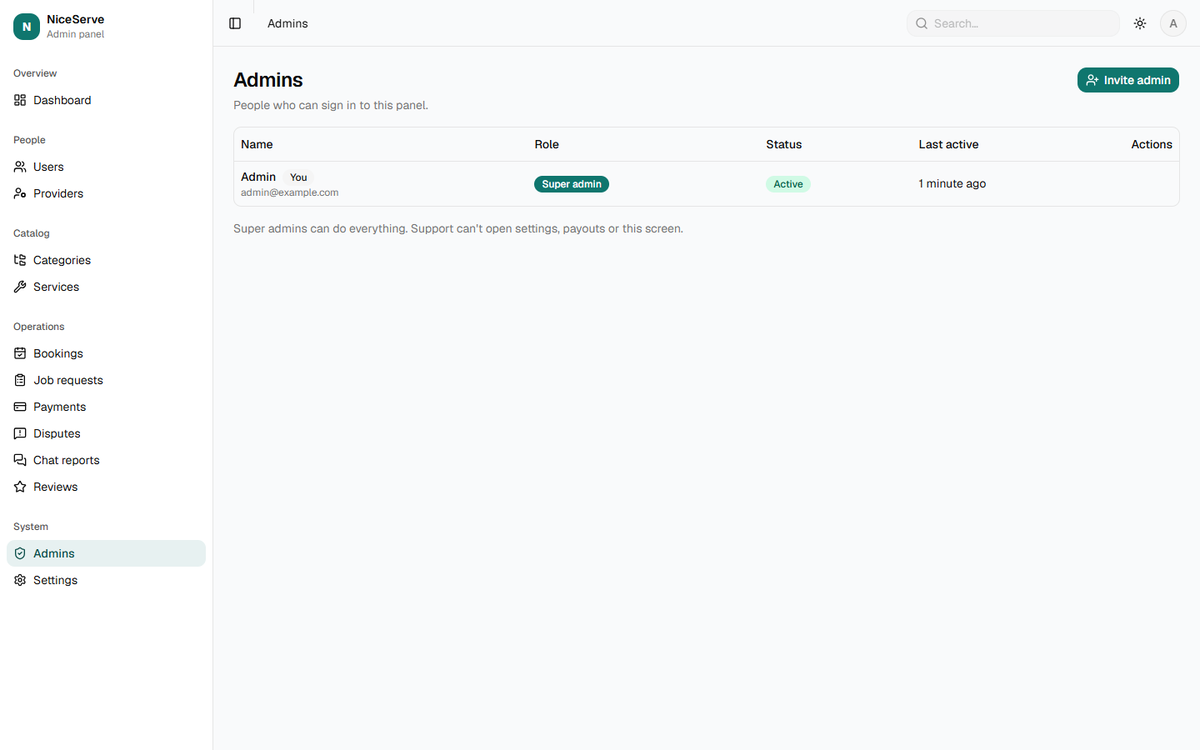
Admins lists everyone who can sign in to the panel. There are two roles:
| Role | Can do |
|---|---|
| Super admin | Everything |
| Support | Everything except Settings, payouts and the Admins screen |
To add someone, click Invite admin, enter their email and name, and pick a role. If they already have an app account, it gets admin access; otherwise a new account is created. They receive an email with a Set your password link.
To take access away, use the row's actions to remove admin access. The person keeps their normal app account. You can't change or remove your own admin access; another super admin has to do it.