Manage your bookings
Your bookings
Tap Bookings in the bottom bar. Bookings are grouped in three tabs:
- Upcoming: waiting for the pro, confirmed, or under way.
- Past: finished jobs.
- Cancelled: bookings cancelled by you or the pro, declined or expired.
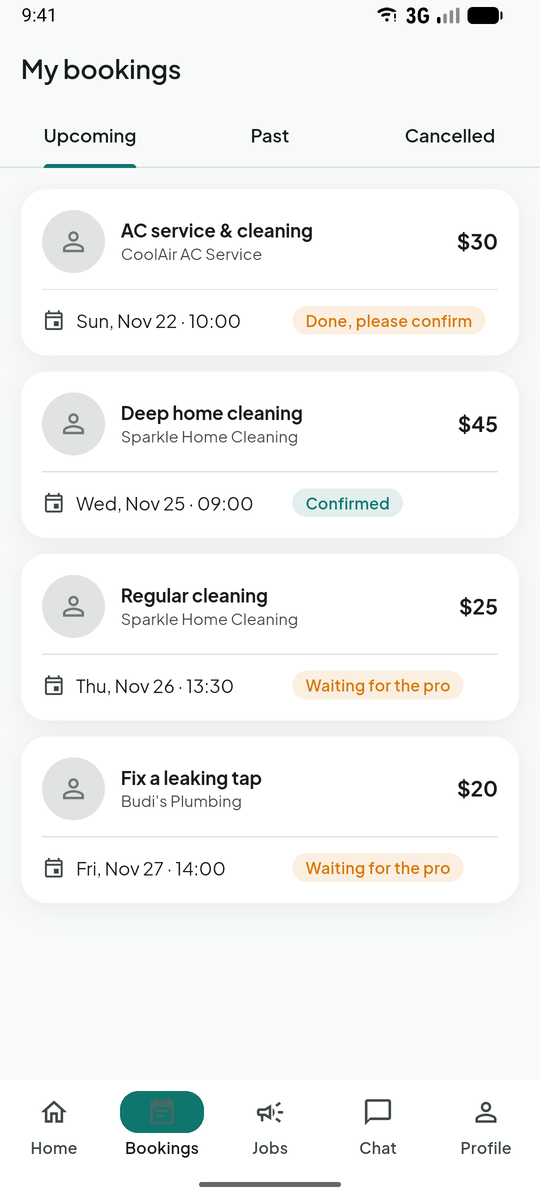
Each card shows the service, the pro, the date and time, and a colored status. Pull down to refresh.
Booking details
Tap a booking to open it.
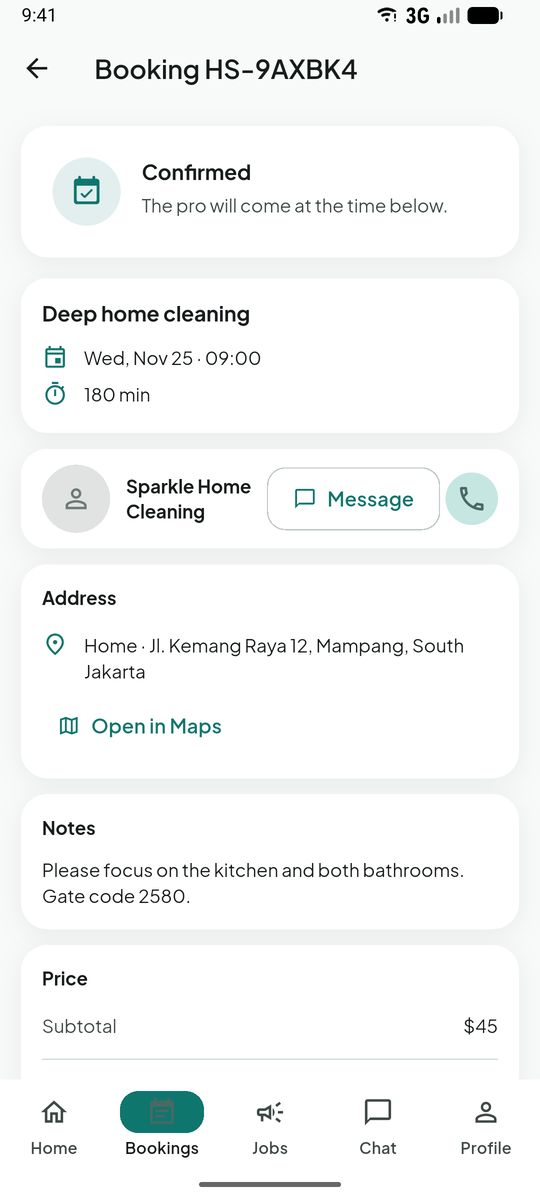
At the top, a status banner explains where things stand, for example Confirmed: The pro will come at the time below. (All statuses are listed in Booking statuses.)
Below that you'll find:
- The pro, with Message to chat and Call once they've accepted.
- Date, time, address (Open in Maps) and your notes and photos.
- Price, deposit and how you're paying, plus the payment receipts.
- Timeline: every step of the booking with who did it and when (You, Pro, Support or Automatic).
- The booking code, for example Booking HS-2CM8RC. Quote it when you contact support.
Cancel a booking
- Open the booking and tap Cancel booking.
- The app shows what you get back: You can cancel for free, You'll get $X back, or A cancellation fee of $X applies.
- Optionally give a reason, then confirm. Tap Keep booking to change your mind.
Cancelling is free up to the time set by the marketplace (for example 24 hours before the start). After that, the deposit may not be refunded.
When the pro finishes
The pro marks the job as done, and the booking shows Done, please confirm.
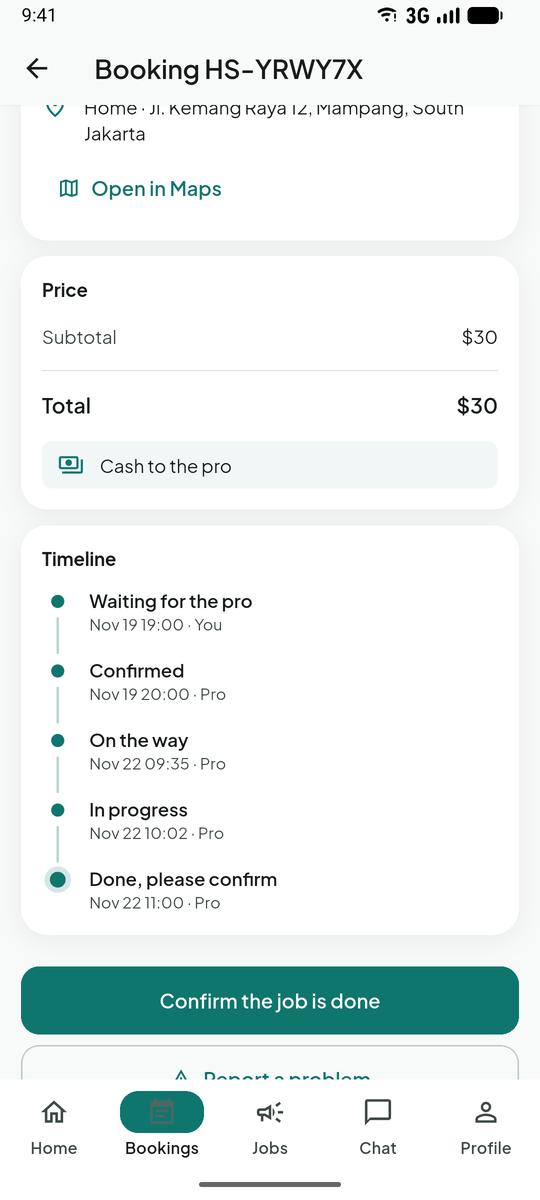
- If you're happy, tap Confirm the job is done → Yes, it's done. This releases the payment to the pro.
- If something isn't right, tap Report a problem within 48 hours. Describe what went wrong and add photos, then tap Send report. The booking shows Problem reported while the support team looks into it, and the outcome appears under Your report.
If you do neither, the job is confirmed automatically after the waiting period.
Leave a review
After you confirm, tap Leave a review. Choose 1 to 5 stars, optionally tell others how it went and add photos, and tap Send review.
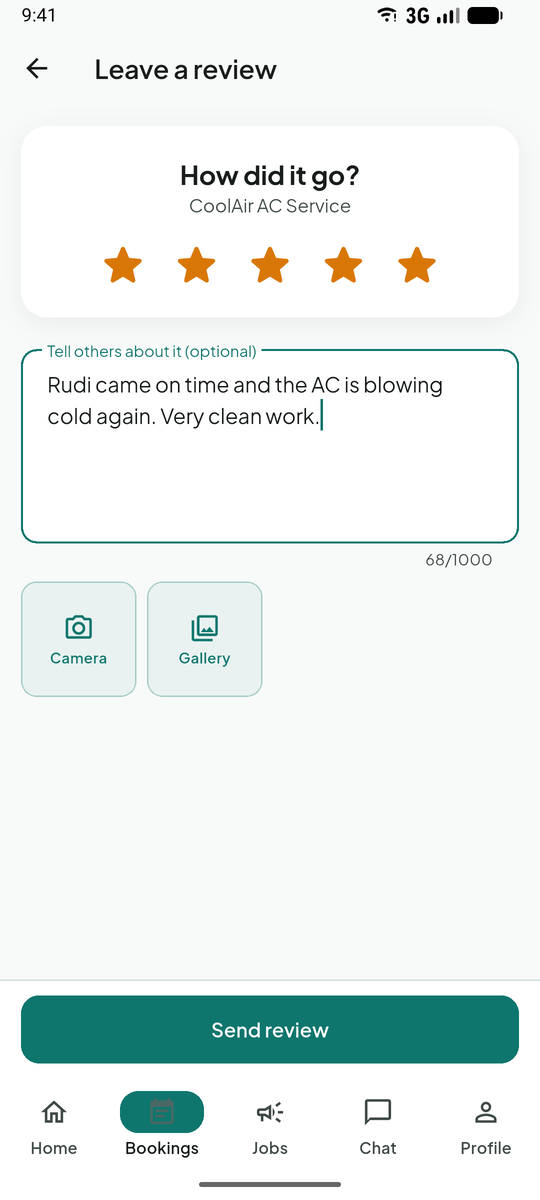
Reviews appear on the pro's profile and help other customers choose. The pro may write a public reply.
Book again
On a finished booking, tap Book again to book the same pro and service with a new time.