Bookings, payments and disputes
Bookings
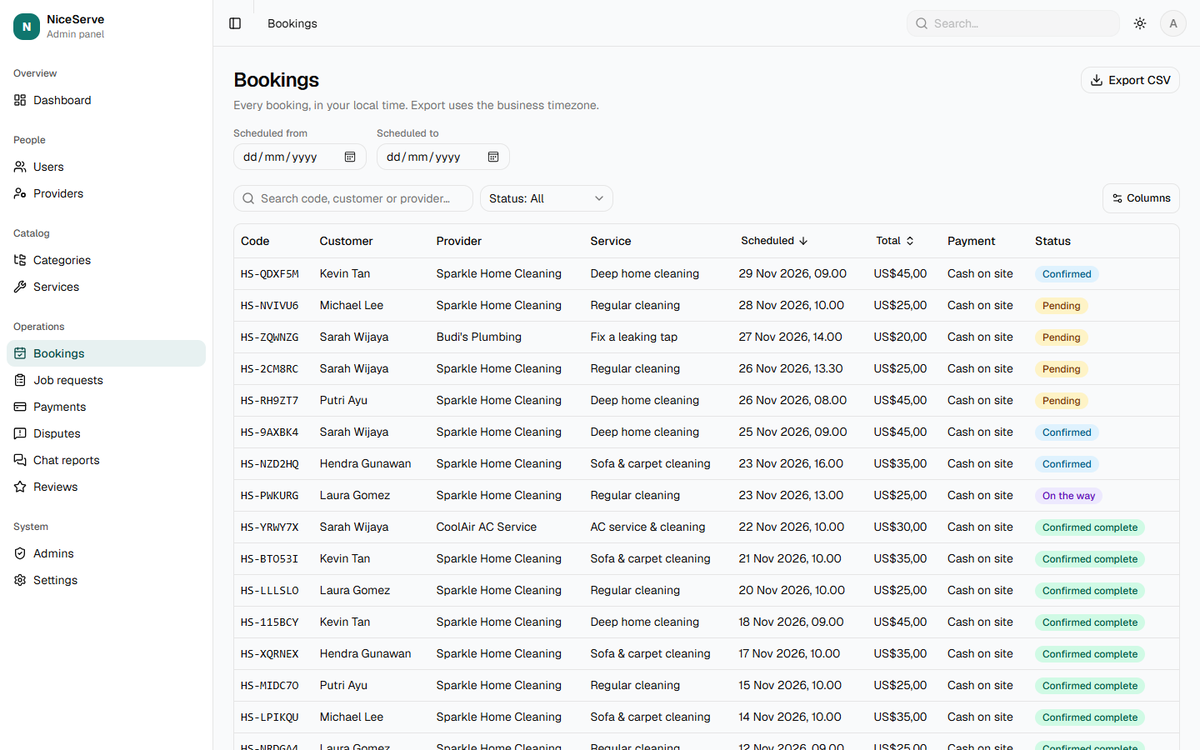
Bookings lists every booking with its code, customer, provider, service, date, total, payment method and status. Times are shown in your browser's timezone.
- Search by booking code, customer or provider. Customers and providers quote the code (e.g.
HS-9AXBK4) when they contact you. - Filter by date range and status.
- Export CSV downloads the filtered list for your accounting. Exported times use the business timezone.
What each status means: Booking statuses.
Booking details
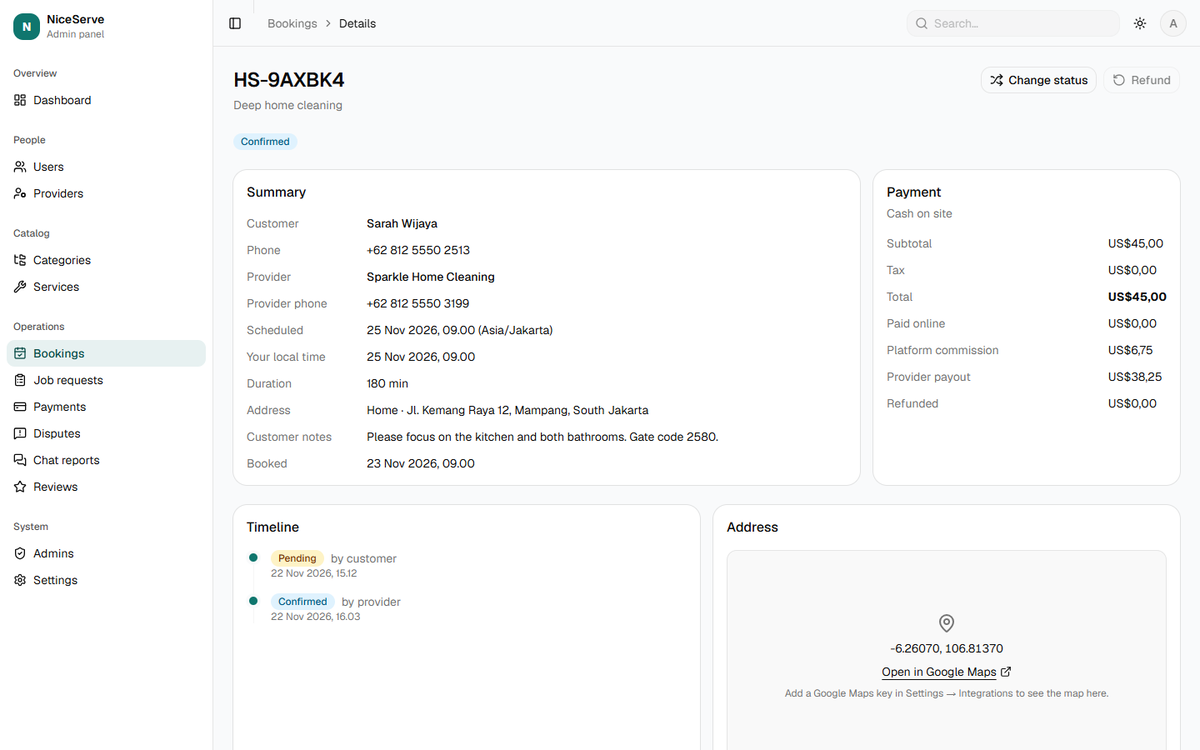
Open a booking to see the customer and provider with their phone numbers, the time (in the provider's timezone and yours), address, notes and photos, the price breakdown (subtotal, tax, paid online, platform commission, provider payout, refunded), the timeline of every status change, and the reviews both sides left.
Two actions sit at the top right:
- Change status: an admin override, for example to mark a job as done when the provider forgot. Pick the new status and write a note; the change and your note appear in the timeline. It doesn't move any money.
- Refund: sends money back to the customer's card (only for card payments). See Refunds.
Job requests
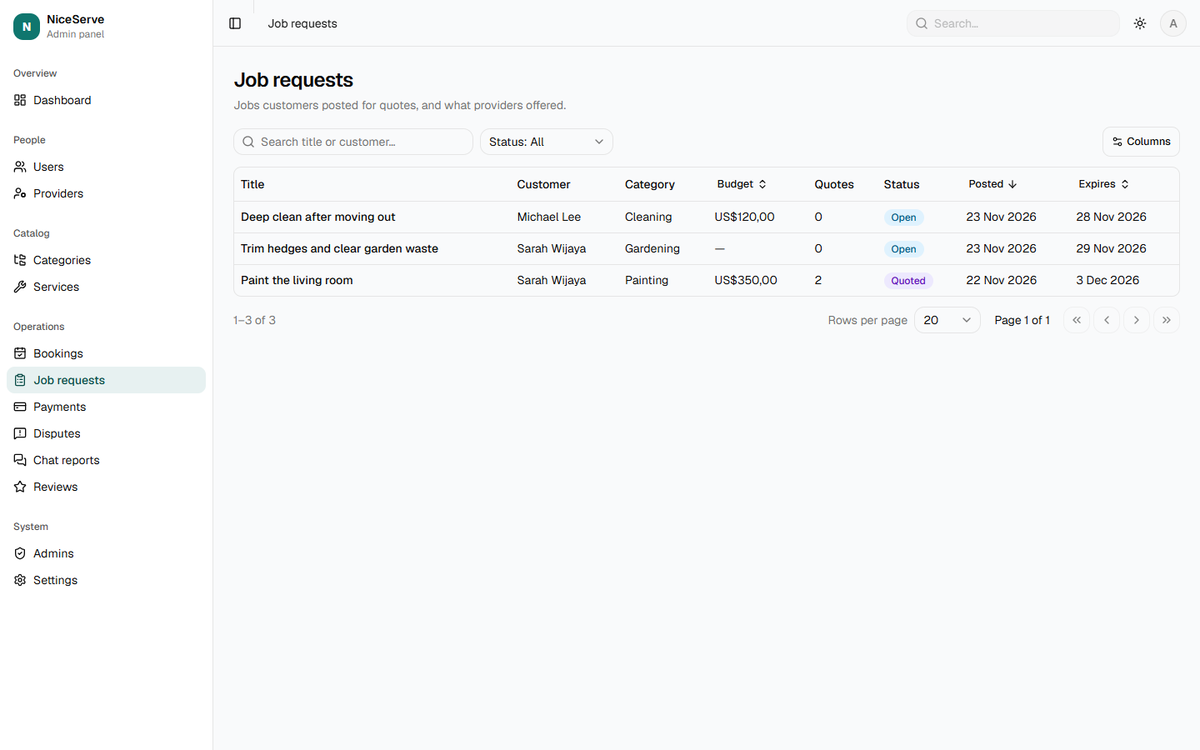
Job requests lists the jobs customers posted for quotes: title, customer, category, budget, number of quotes, status and expiry. Open one to read the request and every quote providers sent. An accepted job links to the booking it became.
You don't need to do anything here day to day. It's useful when a customer or provider asks about a job.
Disputes
When a customer taps Report a problem on a finished job, the booking becomes Disputed and appears in Disputes, oldest first so nobody waits too long. The provider's earnings for that job are on hold until you decide.
-
Open the dispute. Read what the customer says, look at their photos and the provider's completion photos, and check the chat if needed.
-
Click Resolve dispute and choose the outcome:
Outcome Result Full refund Everything the customer paid online is refunded. The booking becomes Refunded. Partial refund Enter an amount. The booking counts as complete and the provider gets the rest. No refund The provider is paid as normal. The booking counts as complete. -
Optionally add a note. Both sides are notified of the outcome, with your note.
For cash bookings nothing was paid online, so there's nothing to refund in the app; settle it with both sides directly and choose No refund.
How long customers can report a problem is set in Settings → Business → Report a problem within.
Payments
Payments has four tabs:
| Tab | Shows |
|---|---|
| Payments | Card payments: deposits, full prices and balances, with their Stripe ID |
| Refunds | Every refund, with its reason |
| Payouts | Money sent to providers through Stripe Connect |
| Owed commission | Commission providers owe you from cash jobs |
The first three fill up once Stripe is set up.
Refunds
From a booking, click Refund, enter the amount (up to what was paid) and a reason such as Late arrival. The money goes back to the customer's card. If the provider was already paid out, the same amount is taken back from them.
Settle commission on cash jobs
With cash payments, the provider receives the full price and owes you the commission. Owed commission lists each provider with the amount owed, the number of cash jobs and the oldest unpaid one.
When a provider pays you (by bank transfer, for example), click Mark settled, note how it was paid (e.g. Bank transfer, ref 4471) and confirm. The provider's app shows what they still owe.