Set your availability
Customers can only book the times you're available. Go to Profile → Calendar (or the calendar shortcut on the dashboard). The page has two tabs, Weekly hours and Calendar. Times are in your own time zone, shown at the top.
Weekly hours
Your normal working week.
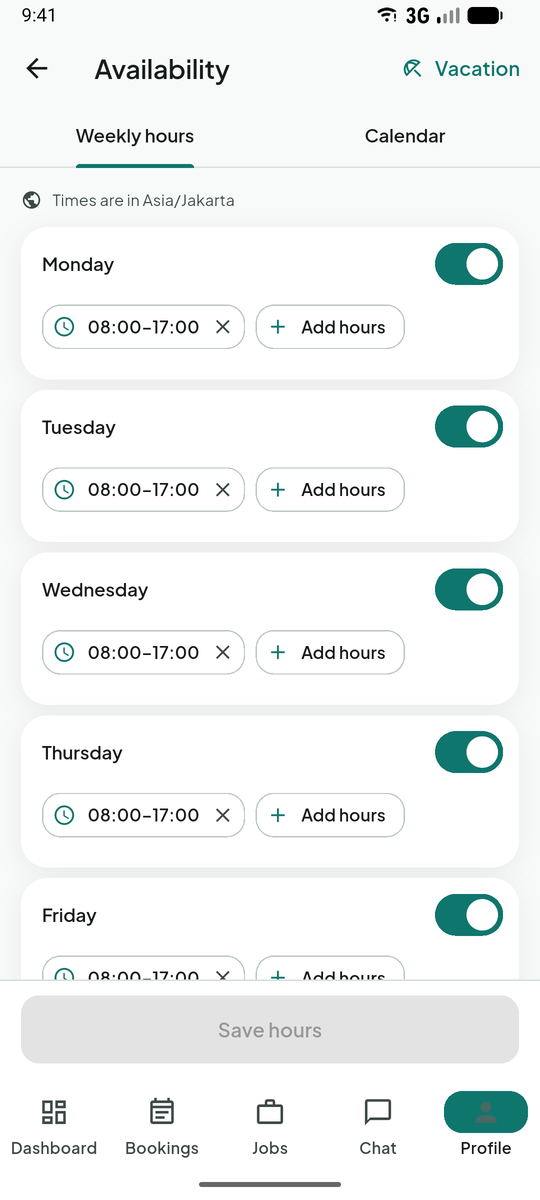
- Each day is either Closed or has one or more time ranges, From and To.
- Tap Add hours to add a range to a day, for example a morning and an afternoon shift.
- Copy Monday to weekdays copies Monday's hours to Tuesday to Friday.
- Tap Save hours. Customers see the change right away.
Ranges on the same day can't overlap; the app tells you which day to fix.
Calendar
The calendar shows a month at a glance:
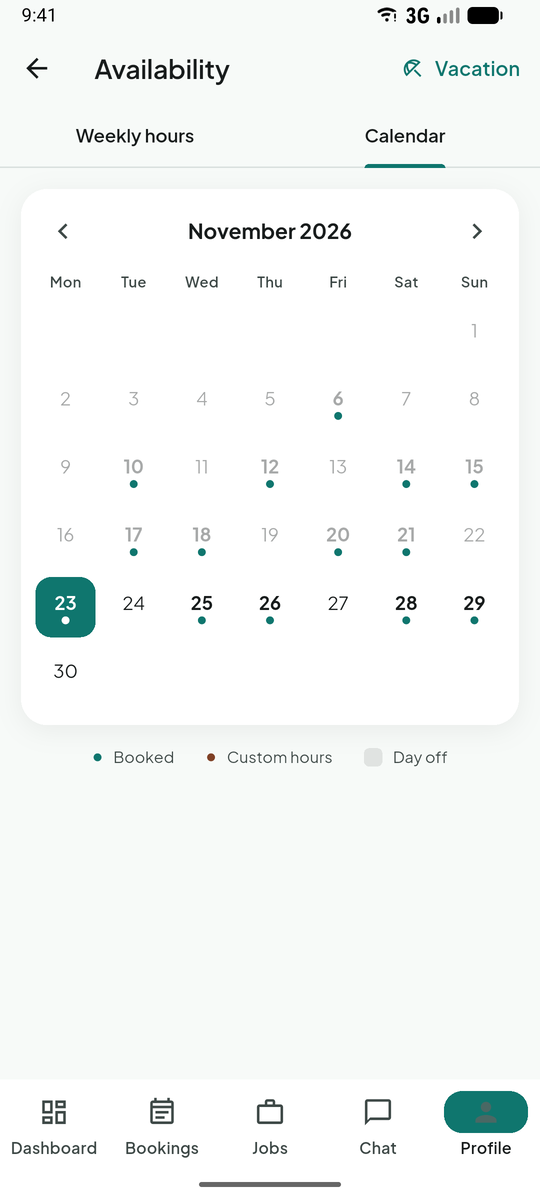
| Mark | Meaning |
|---|---|
| Booked | You have bookings that day. |
| Day off | The whole day is blocked. |
| Custom hours | The day has different hours from your weekly hours. |
Tap a day to see its bookings and change it:
- Block the whole day for a day off.
- Set custom hours for a day with different hours.
- Back to weekly hours to undo either.
Vacation
Tap Vacation, choose the first and last day (up to 90 days), and save. Every day in between is blocked, so no one can book you while you're away. Existing bookings aren't cancelled; cancel or move them yourself if needed.