Catalog
The catalog is what customers browse in the app: categories (Cleaning, Plumbing…) and the services inside them (Deep home cleaning, Fix a leaking tap…). Providers pick from these services when they apply and set their own price for each.
Start from a starter catalog
Categories → Starter catalogs adds a ready-made catalog: Cleaning, Handyman, Salon & Spa or Pet care. Each adds categories and services with icons, suggested prices and durations, and names in English, Arabic, Indonesian and Spanish.
- You can load more than one. Anything with the same English name is kept as it is, so loading twice doesn't create duplicates.
- Prices use your business currency. Check them after loading, and set the currency in Settings → Business first.
Categories
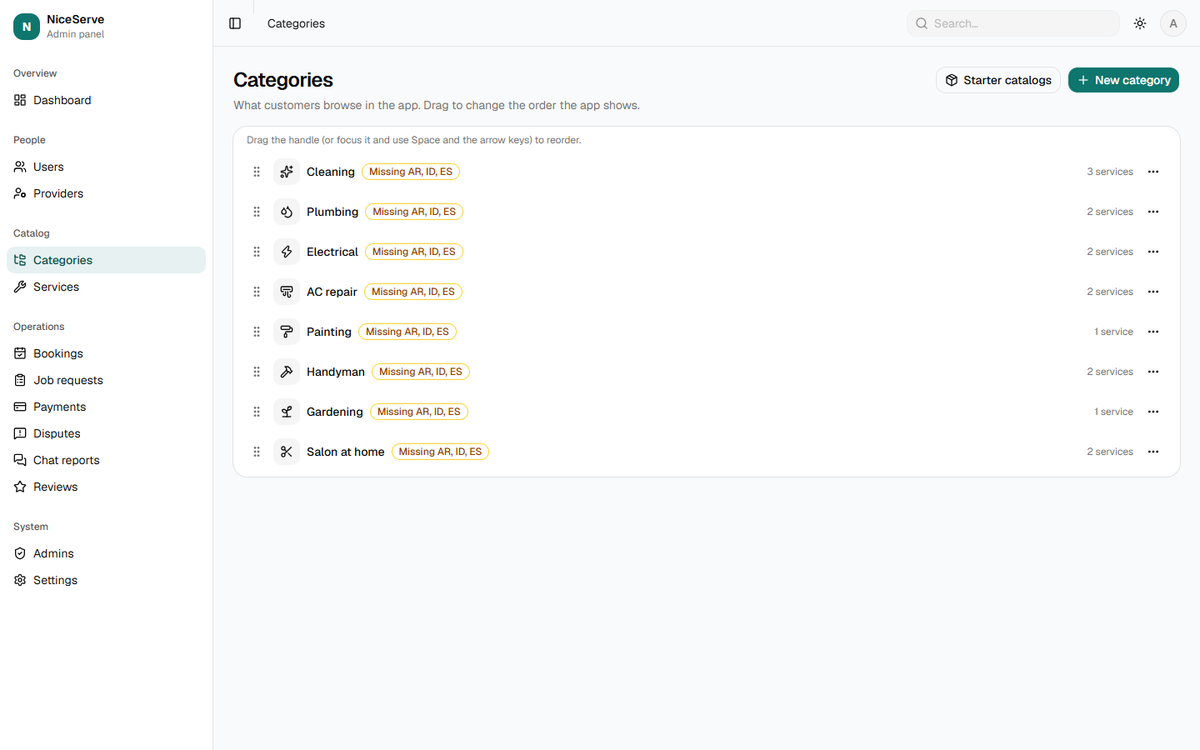
- New category: name, description, parent, icon, image and whether it's active.
- Sub-categories: categories go two levels deep. Use Add sub-category on a top-level category, or pick a Parent when you edit one.
- Icon: pick one of the built-in icons, or upload a custom icon.
- Order: drag the handle to change the order the app shows. With a keyboard, focus the handle and use Space and the arrow keys.
- Missing AR, ID, ES means the name isn't translated into those languages yet. The app shows the English name until you add them. Each name and description has a field per enabled language.
- Inactive categories are hidden in the app.
Only empty categories can be deleted. Move or delete their services and sub-categories first, or simply deactivate the category.
Services
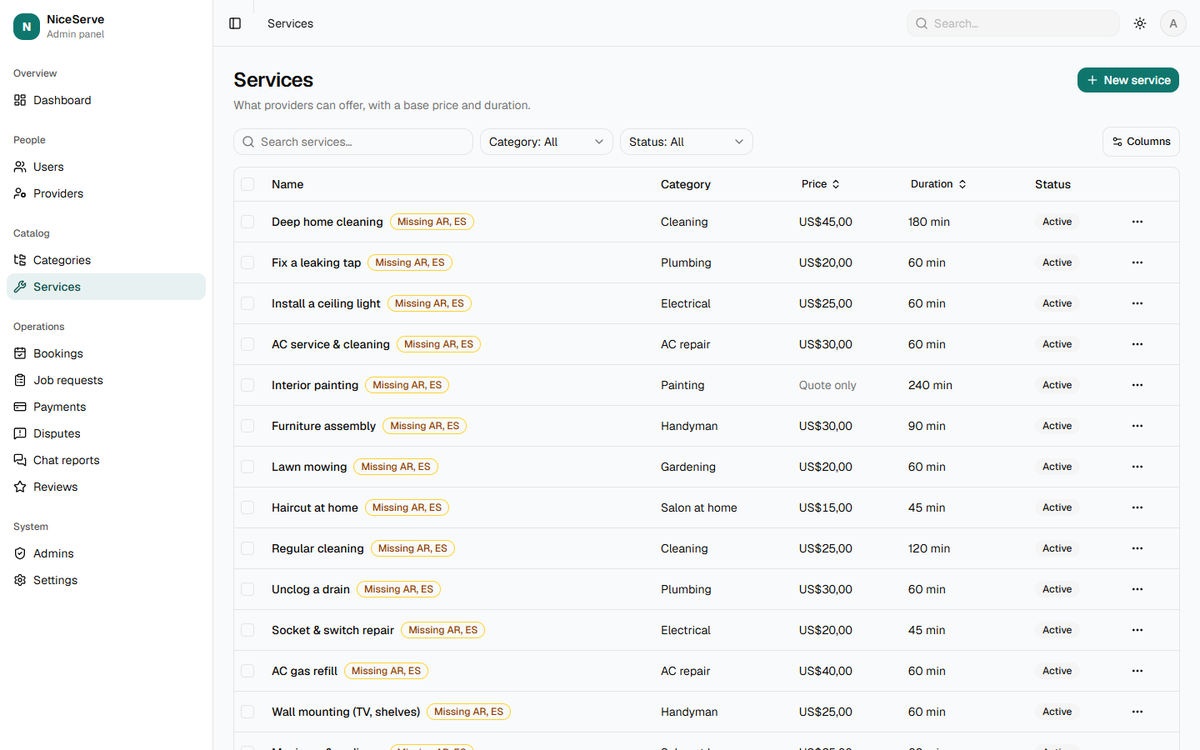
A service has a category, name, description, price, duration and status. The price type decides how it's booked:
| Price type | In the app |
|---|---|
| Fixed | Customers pick a time and pay this price. Providers can set their own price for the service. |
| Hourly | Customers pay per hour. The duration is the minimum booking. |
| Quote only | No list price. Customers post a job and compare quotes from providers. |
Durations range from 15 minutes to 24 hours. Time slots in the app follow the duration and the Time slot step in Settings → Business.
Bulk actions: tick services to activate, deactivate or delete several at once.
Deleting: providers offering a deleted service lose it from their list. Services that were ever booked can't be deleted, so the booking history stays complete; deactivate them instead, and they disappear from the app.