Book a service
Booking takes five short steps. Start from a pro's profile and tap Book next to a service. You need to be signed in; if you aren't, the app asks you to sign in first and then brings you back.
1. Choose a service
If you started from a specific service, this step is skipped. Otherwise pick one of the pro's services. Each shows its price and how long it takes.
If the pro only works by quote, the app says This pro only works by quote; use Request a quote instead (see Post a job).
2. Pick a time
Choose a day from the strip at the top, then a free time. Times are shown in your phone's time zone.
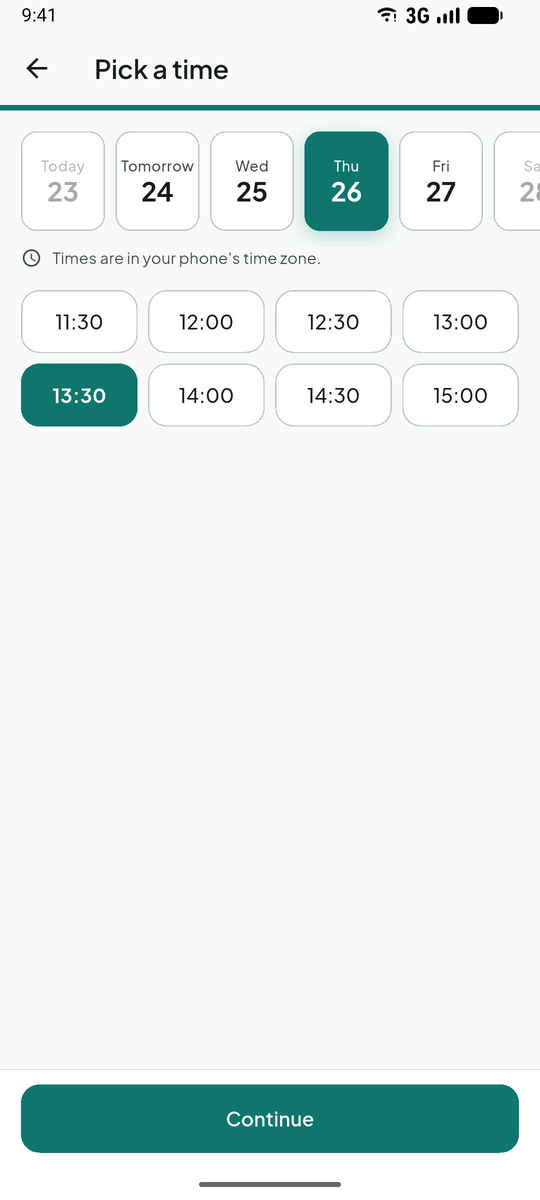
- Days marked fully booked have no free times left.
- If the day you picked is full, tap Next available day.
- If the pro has no free time in the next two weeks, try another pro or request a quote.
3. Where?
Choose one of your saved addresses, or tap Add a new address.
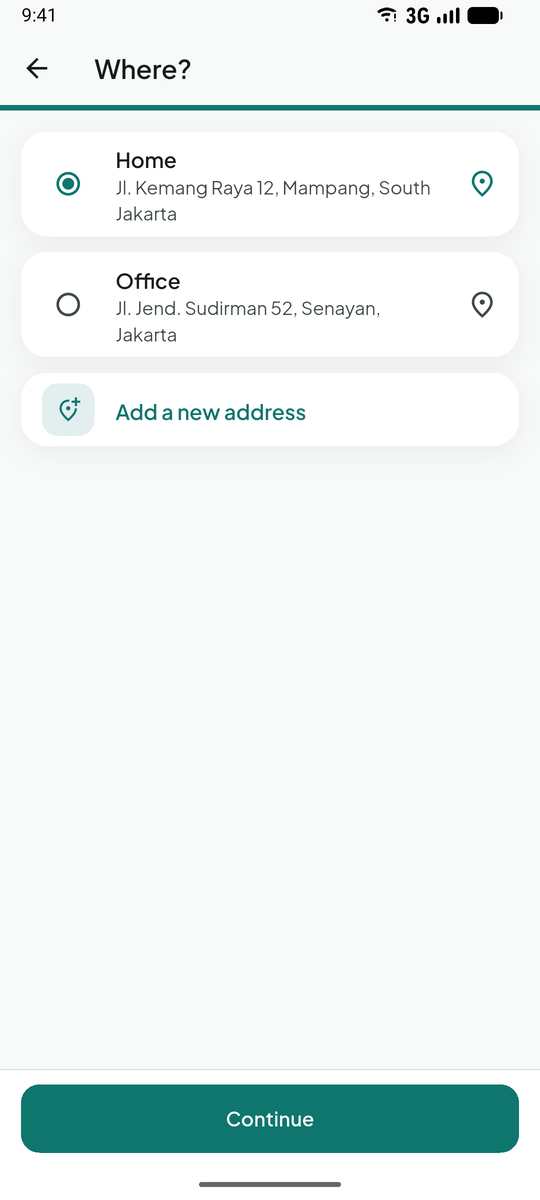
For a new address, enter Street and number, an optional Label (Home, Office…), or tap Use my current location. Then tap Use this address. New addresses are saved to your profile for next time.
If the address is outside the pro's service area, the app tells you. Choose another address or another pro.
4. Details
Help the pro prepare:
- Notes for the pro: gate code, parking, what exactly needs doing.
- Photos: add pictures from the Camera or Gallery (the limit is shown next to the title). Tap a photo's ✕ to remove it.
Both are optional.
5. Review and confirm
Check the service, time, address and price.
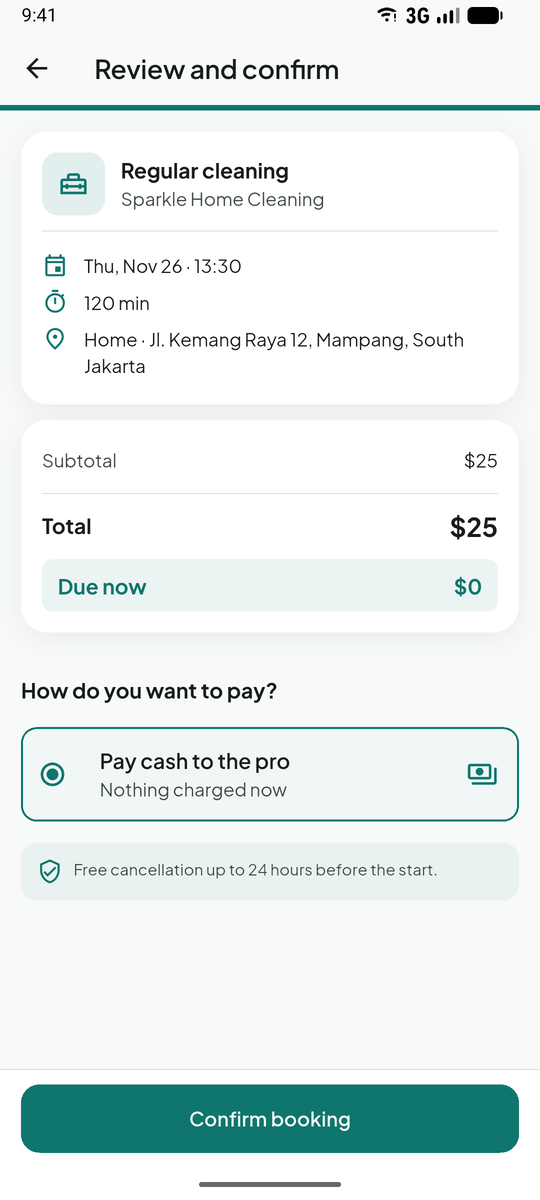
The summary shows the Subtotal, any Tax and the Total. Under How do you want to pay? pick one of the options your marketplace offers:
| Option | What happens |
|---|---|
| Pay a deposit now, the rest after the job | A share of the price (for example 20%) is charged by card now. The rest is charged when the job is done. |
| Pay in full now | The whole price is charged by card now. |
| Pay cash to the pro | Nothing is charged in the app. You pay the pro in cash after the job. |
Due now shows how much is charged right away. The cancellation policy is shown below, for example Free cancellation up to 24 hours before the start.
Tap Confirm booking.
Paying by card
If you chose a card option, a payment sheet opens. Your time is held for 30 minutes while you pay, and the pro sees the request only after the payment goes through. If you close the sheet, you can pay later from the booking (it shows Payment needed).
Booking requested
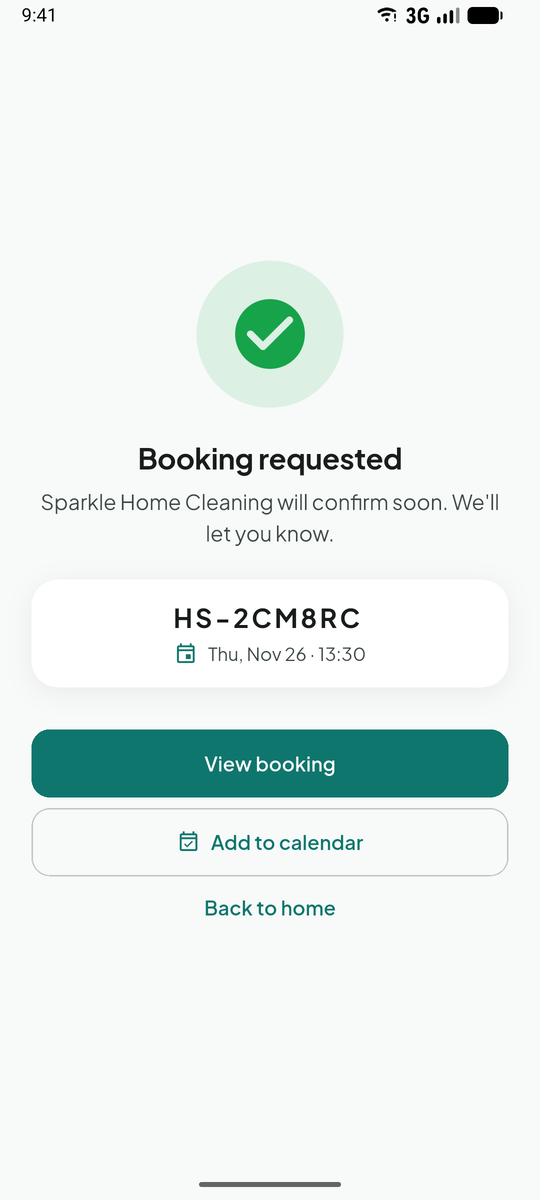
The pro now has a limited time to accept or decline. You'll get a notification either way. From here you can:
- View booking to open its details.
- Add to calendar to save it in your phone's calendar.
- Back to home.
If the pro declines or doesn't reply in time, anything you paid is refunded.
If something goes wrong
| Message | What it means |
|---|---|
| Someone just booked that time. Please pick another one. | Another customer took the slot a moment before you. Choose a different time. |
| This address is outside the pro's service area. | The pro doesn't travel that far. Pick another address or pro. |
| No payment option is available right now. | The marketplace has no payment method switched on. Try again later or contact support. |
Next: Manage your bookings.