First launch
Welcome screens
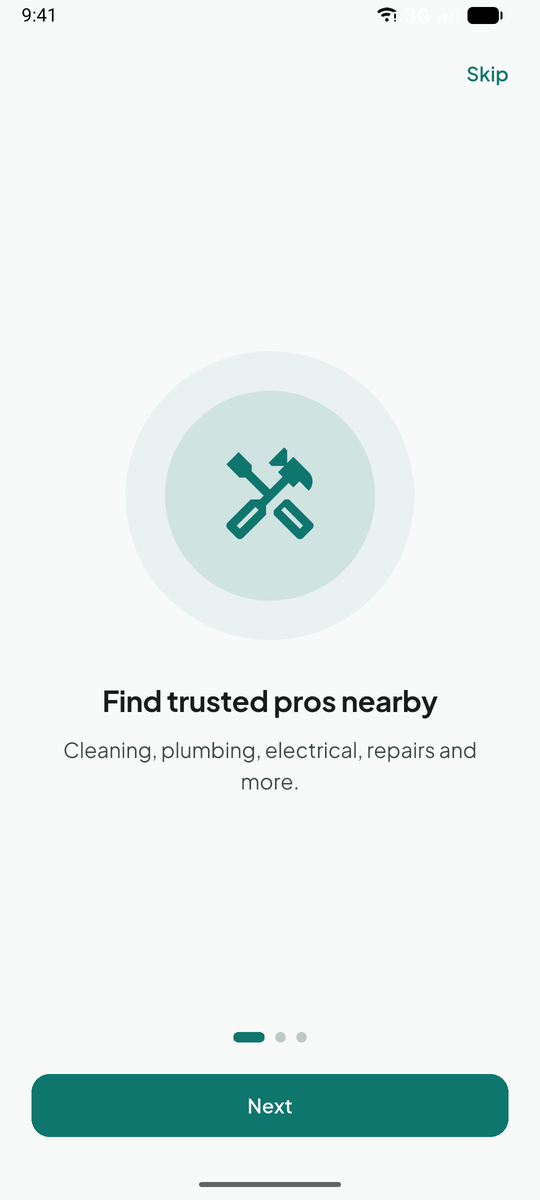
The first time you open the app, three short screens explain what it does. Tap Next to move on, or Skip to go straight in. The last screen has a Get started button.
After the welcome screens you land on the home screen. You can browse categories, pros and prices as a guest; the app asks you to sign in only when you book, post a job, chat or open your profile.
Set your location
Pros only work within a set distance of their base, so the app needs to know where the job is. Tap the location at the top of the home screen (Service at … or Set your location).
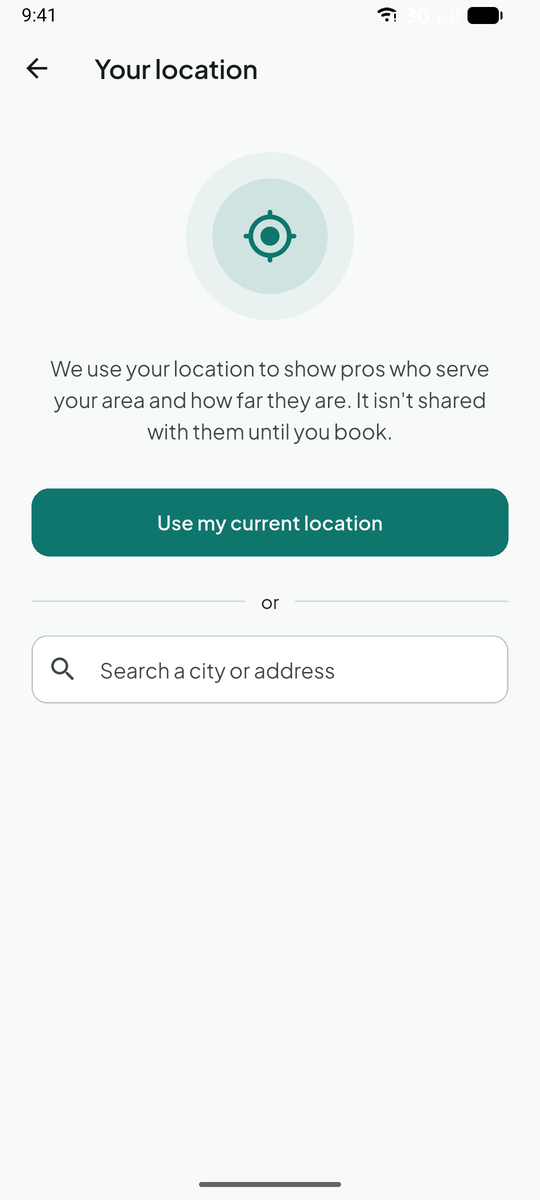
- Use my current location asks for the phone's location permission and fills in your area.
- Or type a city or address in Search a city or address and pick a result.
Your location is used to show pros who serve your area and how far away they are. It isn't shared with a pro until you book.
If you said no to the location permission, you can still type your city. To allow it later, tap Open Settings when the app offers it, or change the permission in your phone's settings.
Notifications
After you sign in, the app asks Get updates on your phone. Tap Turn on to hear when a pro accepts your booking, sends a quote, is on the way or writes to you. You can choose which kinds of notifications you get later, in Profile and settings.